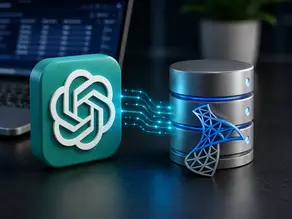
Key Takeaways:
- Connect ChatGPT to SQL Server through an authorized app or MCP-based integration.
- Prepare your SQL Server host, port, database, authentication, permissions, and network access first.
- Use dedicated, least-privilege database credentials instead of administrator accounts.
- Test the connection with simple, verified queries before asking complex questions.
- Review generated SQL and results before using them for important business decisions.
If your business data already lives in SQL Server, moving it into a spreadsheet just so ChatGPT can analyze it feels like going backward.
The better approach is to connect ChatGPT to an authorized SQL Server connection and let it work with the data where it already lives. Depending on your setup, that can involve a connected app or an MCP-based integration that exposes approved database tools to ChatGPT.
In this guide, I’ll walk through what you need, how the connection works, how to test it, what ChatGPT can actually do with SQL Server data, and the mistakes worth avoiding before you point an AI tool at a production database.
Can ChatGPT Connect to SQL Server?
Yes. ChatGPT can work with external tools and data through connected apps, and custom MCP apps can let ChatGPT call approved tools. The exact setup depends on your ChatGPT plan, workspace settings, and the connection method you choose.
The important part is this: ChatGPT does not simply “see” your SQL Server database. A connection layer has to expose the database capabilities that ChatGPT is allowed to use.
Think of the workflow like this:
You → ChatGPT → Connected App or MCP Server → SQL Server → Query Result → ChatGPT
That distinction matters. Your database remains the system that stores and processes the data, while ChatGPT becomes the natural-language interface for asking questions about it.
If you’re still trying to understand database connections more broadly, our guide to connecting ChatGPT to a database covers the wider picture. Here, we’re staying focused on Microsoft SQL Server.
How ChatGPT Connects to SQL Server
The easiest way to understand the setup is to separate the two sides.
On one side, you have SQL Server: tables, views, schemas, permissions and the actual business data.
On the other, you have ChatGPT, which understands a question such as:
“Which five customers generated the most revenue this quarter?”
The connection layer sits between them. With an MCP-based setup, the Model Context Protocol provides a standardized way for ChatGPT to call approved external tools. OpenAI describes custom MCP apps as a way to connect ChatGPT to external tools and data and, where supported, perform approved actions.
So the flow is roughly:
- You ask a question in plain English.
- ChatGPT determines which connected tool can help.
- The authorized tool accesses the SQL Server data.
- SQL Server processes the database request.
- The result comes back to ChatGPT.
- ChatGPT explains the result in normal language.
It sounds simple when you see the flow. The tricky part is making the connection secure and giving it only the access it actually needs.
What You Need Before Connecting ChatGPT to SQL Server?
Before opening ChatGPT, have these details ready:
- SQL Server hostname or IP address
- Database name
- TCP port
- Authentication method
- Database username and password, if applicable
- Required tables, views or schemas
- Network access to the SQL Server
- A connection method or MCP server that ChatGPT can use
For a default SQL Server instance, the standard TCP port is 1433, although your infrastructure team may have configured a different port. Microsoft documents the server/instance, protocol and port as core connection parameters.
| Requirement | What you should check |
| Server | SQL Server hostname or IP |
| Port | Usually TCP 1433 for the default instance |
| Database | Exact database name |
| Authentication | SQL Server, Windows, Microsoft Entra or supported method |
| Permissions | Only the data required for the use case |
| Network | The connection layer must be able to reach SQL Server |
One mistake worth avoiding is testing everything with localhost and assuming that address will work from a cloud-based connector.
localhost means the machine you’re connecting from. If SQL Server is running on your laptop, a remote service cannot simply use your laptop’s localhost address to reach it. Microsoft documents localhost and 127.0.0.1 as local connection options when the database engine is on the same machine as the client.
Choose the Right Setup for Your SQL Server
Your connection approach should depend on where SQL Server actually lives.
Local SQL Server
If you’re running SQL Server on your own computer, you’ll need a route that allows the connection layer to reach it. A local loopback address alone isn’t enough for a remote service.
On-premises SQL Server
A private SQL Server may require an approved network route, VPN, SSH tunnel or another controlled connection method.
Azure SQL
Azure SQL has its own networking and authentication considerations. Don’t assume that a connection that works for a local SQL Server will use exactly the same configuration in Azure.
Production SQL Server
This is where I would slow down.
Don’t connect an AI workflow to production just because you want to test a prompt. Create an appropriate identity, restrict permissions, and start with a controlled use case.
Microsoft recommends granting the minimum permissions required and regularly reviewing them as part of SQL Server security.
How to Connect ChatGPT to SQL Server
The exact buttons depend on the connector or MCP implementation you’re using, so don’t treat one vendor’s interface as the universal ChatGPT setup.
The underlying process is more consistent.
Step 1: Prepare SQL Server
First, make sure the database itself is ready.
Confirm that:
- SQL Server is running
- The required network protocol is enabled
- The server and port are correct
- The target database exists
- The authentication method works
- The required tables or views are accessible
Microsoft’s SQL Server connection documentation covers TCP/IP, named instances, custom ports and local versus network connections.
Step 2: Create a Dedicated Database Identity
This is one of the steps I would not skip.
Don’t hand an AI connection your everyday administrator credentials simply because they are convenient.
Create a dedicated identity for the integration and grant only the permissions it needs. If the workflow only requires reporting, read access may be enough.
For example, a permission can be scoped to a schema rather than the entire database:
GRANT SELECT ON SCHEMA::Sales TO ChatGPTReader;The exact role and schema names should match your environment. The principle is more important than the sample: give the connection the smallest useful permission set.
Microsoft’s permissions documentation specifically recommends granting the least permission possible and explains that permissions can be controlled at database, schema and object levels.
Step 3: Configure Your SQL Server Connection Layer
Now configure the connector or MCP server that will expose SQL Server to ChatGPT.
Typically, you’ll provide:
- SQL Server endpoint
- port
- database
- authentication details
- required tools or queries
- access permissions
If you’re using MCP, pay attention to the tools being exposed. You don’t necessarily need to make every database operation available.
For a reporting assistant, exposing controlled read operations is usually a much more sensible starting point than exposing unrestricted write operations.
Step 4: Connect the Integration to ChatGPT
Current ChatGPT terminology revolves around apps, with custom MCP apps available for connecting ChatGPT to external tools and data. Availability and controls depend on plan and workspace configuration.
For a custom MCP app, an administrator or authorized developer may need to enable the appropriate developer settings, provide the MCP endpoint, configure authentication and review the tools before publishing the app. OpenAI’s current documentation also notes that Enterprise and Edu workspaces can use role-based controls for access to custom apps.
Because ChatGPT’s interface changes, always verify the current labels in your workspace rather than blindly following screenshots from an older tutorial.
Step 5: Test the Connection With a Simple Question
Don’t start with:
“Analyze every customer and tell me why revenue dropped.”
That’s asking for trouble.
Start with something you already know.
Try:
“How many customers are in the Customers table?”
Then:
“Show the five most recent orders.”
Then move to:
“What was total revenue this month?”
If the result matches what you expect, you have a much better foundation for more complicated questions.
What Can You Ask ChatGPT About SQL Server Data?
Once the connection works, the interesting part begins.
Simple lookups
“Show customers created in the last 30 days.”
Aggregations
“Calculate total revenue by region for this quarter.”
Trends
“Compare monthly sales for the last 12 months.”
Filters
“Find orders above $10,000 that haven’t shipped.”
Joins
“Show each customer’s five most recent orders.”
Business analysis
“Which products had the largest revenue decline compared with last quarter?”
The useful shift here is that the user doesn’t have to think in SQL first. They can start with the business question.
That doesn’t mean SQL knowledge suddenly becomes irrelevant. Quite the opposite. Someone who understands the schema and can review the generated query will usually get much better results.
How ChatGPT Queries SQL Server Behind the Scenes?
When the connection is configured correctly, the process looks something like this:
Natural-language question
↓
ChatGPT identifies the appropriate tool
↓
The connected tool accesses the permitted SQL Server data
↓
SQL Server executes the database operation
↓
Results return to ChatGPT
↓
ChatGPT explains the result
The important thing to remember is that ChatGPT isn’t replacing SQL Server.
SQL Server is still responsible for the database, query execution and its own permission boundaries. The AI layer is interpreting your request and using the tools it has been given.
And yes, that distinction becomes very important when something goes wrong.
A query can be perfectly valid SQL and still answer the wrong business question.
How to Keep a ChatGPT-to-SQL Server Connection Secure?
This is the part I would take most seriously.
Microsoft recommends least-privilege access, strong identity controls, monitoring and protection of sensitive data when securing SQL Server.
| Security area | Safer approach |
| Database account | Use a dedicated identity |
| Permissions | Grant only what is required |
| Production data | Start with a limited scope |
| Write access | Disable unless genuinely necessary |
| Sensitive data | Restrict unnecessary tables and columns |
| Network | Use an approved private route where appropriate |
| Monitoring | Review access and important activity |
If your database contains customer records, financial information or other sensitive data, don’t assume that “AI connection” automatically means “safe.”
Review what data the connected tool can access, what actions it can perform and who can invoke those actions.
SQL Server also supports more granular controls, including schema/object-level permissions and features such as row-level security for appropriate scenarios.
Five mistakes I would avoid
- Using sa because it’s convenient.
- Giving the connection access to every database.
- Exposing a production SQL Server unnecessarily.
- Starting with complicated queries before testing simple ones.
- Trusting an AI-generated result without checking the underlying logic.
That last one gets overlooked.
A confident answer is not the same thing as a verified answer.
Can ChatGPT Modify SQL Server Data?
Potentially, yes—but it depends on the tools and permissions exposed to ChatGPT.
OpenAI’s current MCP documentation explicitly describes support for write and modify actions in custom MCP apps, with availability and controls depending on the workspace and configuration. ChatGPT may also ask for confirmation before important actions.
So don’t assume that every SQL Server connection is automatically read-only.
If your goal is analytics, I’d start with read-only access. If you later need actions such as creating or updating records, treat those as a separate security decision.
What If Your SQL Server Is Local or Behind a Firewall?
This is a common stumbling block.
If SQL Server runs on your laptop, localhost refers to that laptop. A remote connection service can’t use it as though it were a public hostname.
If the database is behind a corporate firewall, you may need an approved network route, VPN, SSH tunnel or another secure connectivity method.
Microsoft’s troubleshooting guidance points to SQL Server configuration, enabled protocols, network paths and firewalls as common areas to investigate when a connection fails.
Don’t solve a connectivity problem by simply opening everything to the public internet. That’s usually the wrong direction.
Common ChatGPT + SQL Server Connection Problems
Connection problems usually come from incorrect credentials, blocked ports, firewall rules, or an unreachable SQL Server.
| Problem | What to check first |
| Connection refused | Host, port, TCP/IP and firewall |
| Login failed | Username, password and authentication mode |
| Database not found | Database name and permissions |
| localhost fails | Remote network route |
| Query gives a strange result | Schema, joins and generated SQL |
| Query is slow | Filters, joins, indexes and query plan |
| ChatGPT can’t access the tool | App/MCP configuration and permissions |
When troubleshooting, isolate the problem.
First prove that the database connection works. Then prove authentication. Then test a simple query. Only after that should you start debugging complicated AI prompts.
It sounds obvious. In practice, it saves a lot of time.
What About PostgreSQL and MySQL?
The general idea—connecting an AI assistant to a database—is similar, but the actual database configuration, authentication and SQL behavior can differ.
If you’re working with PostgreSQL, see our guide to connecting ChatGPT to PostgreSQL.
And if your stack uses MySQL instead, our guide to connecting ChatGPT to MySQL walks through that database-specific workflow.
The important thing is not to treat all databases as interchangeable. SQL Server has its own authentication models, networking behavior, T-SQL syntax and permission structure.
Using ChatGPT Beyond SQL Queries
Once you get comfortable with database-connected workflows, you may find that the useful part isn’t just asking for rows.
ChatGPT can also fit into development workflows where you’re writing, reviewing or debugging code around the database. If that’s the direction you’re exploring, our guide to using ChatGPT for coding covers the broader development use case.
For SQL Server specifically, though, I’d keep the workflow grounded in the database first: understand the schema, control access, test the query and then let the AI do more of the conversational work.
Conclusion
Connecting ChatGPT to SQL Server isn’t really about making an AI “see” your database.
It’s about creating a controlled bridge between a natural-language interface and the database you already use.
Start small. Give the connection only the permissions it needs. Test a query whose answer you already know. Then expand the workflow once you’re confident the data, permissions and network path are behaving as expected.
That’s the part worth remembering: the smartest AI workflow is still a bad idea if the database access behind it is poorly designed.
Get the SQL Server side right first. ChatGPT becomes much more useful after that.
Frequently Asked Questions
1. Can ChatGPT connect directly to SQL Server?
Yes. ChatGPT can connect to SQL Server through an approved app or MCP-based integration that securely exposes your database to ChatGPT.
2. What do I need to connect ChatGPT to SQL Server?
You’ll need your SQL Server host, database name, port, authentication credentials, network access, and a supported connection method or MCP server.
3. Can ChatGPT query a local SQL Server?
Yes, but not through localhost alone. Your local SQL Server must be accessible through an approved network route or secure connection.
4. Is it safe to connect ChatGPT to SQL Server?
Yes, if you use read-only permissions, least-privilege access, secure authentication, and avoid exposing sensitive production data unnecessarily.
5. Can ChatGPT generate SQL Server queries from plain English?
Yes. ChatGPT can translate natural-language questions into SQL Server queries and return results through an authorized database connection.
6. Can ChatGPT modify data in SQL Server?
It depends on the connection setup. Read-only access is recommended, while write actions require explicit permissions and supported tools.
7. What is the default SQL Server port for ChatGPT connections?
The default TCP port is 1433 for most SQL Server installations, though your administrator may configure a custom port.
8. Why is my ChatGPT SQL Server connection failing?
Most connection issues come from incorrect credentials, blocked ports, firewall restrictions, or SQL Server not being reachable from the connector.

He is an AI & Technology Content Specialist covering generative AI, ChatGPT, AI tools, automation, and emerging technologies. His work focuses on researching complex AI developments and turning them into practical, easy-to-understand insights.