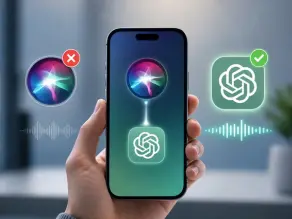
Key Takeaways:
- You cannot fully replace Siri, but you can make ChatGPT much faster to access on iPhone.
- Use a ChatGPT Shortcut for one-tap access, or assign it to the Action Button for faster launching.
- Voice Mode lets you speak naturally with ChatGPT instead of typing, making it feel more like an everyday assistant.
- Apple Intelligence can send suitable Siri requests to ChatGPT when you approve the handoff.
- Keep Siri for alarms, calls, and device controls, while using ChatGPT for writing, research, explanations, and brainstorming.
Most people searching for how to use ChatGPT on iPhone instead of Siri are hoping for one thing: press a button, speak, and let ChatGPT take over.
I thought the same at first. Then I discovered Apple doesn’t actually let you replace Siri completely, and honestly, that’s where most guides stop.
This one doesn’t. I’ll show you what really works, where Apple draws the line, and the small tweaks that make ChatGPT feel like your everyday assistant.
Along the way, I’ll share the mistakes I ran into, what surprised me, and a few practical tips that would’ve saved me time if I’d known them from the start.
Quick Answer
No, Apple does not let you fully replace Siri with ChatGPT.
However, you can:
- Launch ChatGPT using the Action Button
- Create a Siri Shortcut for ChatGPT
- Use ChatGPT Voice Mode
- Connect ChatGPT through Apple Intelligence
Keep reading. Each method is explained step by step below.
Can You Replace Siri with ChatGPT?
No. Apple keeps Siri as the system-level assistant on every iPhone.
There is no setting that removes Siri and puts ChatGPT in its place. That is just how iOS is built right now.
But here is the part most articles skip. You do not really need to replace Siri. You just need faster access to ChatGPT.
Once you set up a shortcut or use the Action Button, opening ChatGPT takes about the same effort as talking to Siri. The app itself just does more once it is open.
Key Takeaway
You cannot remove Siri completely. But you can make ChatGPT almost as fast to reach.
Requirements Before You Start
Before you touch any settings, check this small list. It will save you time later.
- Latest version of the ChatGPT app
- iOS 17 or newer
- A stable internet connection
- An Apple ID signed into your iPhone
- Action Button (iPhone 15 Pro and newer, optional)
- A device that supports Apple Intelligence, if you want that route
If this is your first time using the app, it also helps to learn how ChatGPT works before diving into Voice Mode and Apple Intelligence. It makes the rest of this guide click faster.
How to Use ChatGPT on iPhone Instead of Siri (Step-by-Step)
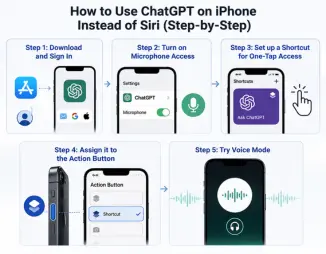
This is the part you actually came for. Go through each step in order. Do not skip the small tips; they matter more than they look.
Step 1: Download and sign in
Open the App Store and search for ChatGPT. Tap install. Once it opens, sign in with your email, Google account, or Apple ID.
If you are new to the app, our beginner’s guide to ChatGPT explains the basic layout so you are not lost on day one.
Pro Tip: If the app does not open right after installing, restart your iPhone first.
Common mistake: People try to use the app without signing in and then wonder why chat history does not save.
Step 2: Turn on microphone access
Go to Settings, scroll to ChatGPT, and enable Microphone. Without this, Voice Mode simply will not work.
Result: You should now see a small microphone icon inside the chat screen.
Step 3: Set up a shortcut for one-tap access
Open the Shortcuts app. Tap the plus icon in the top right corner. Search for the ChatGPT action, or use the Open App action pointed at ChatGPT.
Save it. Give it a short name like “Ask ChatGPT” so it is easy to find later.
Pro Tip: Add this shortcut to your Home Screen for true one-tap access.
Step 4: Assign it to the Action Button (if you have one)
Go to Settings, then Action Button. Scroll through the options until you reach Shortcut. Pick the one you just made.
Now a long press on the side button opens ChatGPT directly. No Siri, no extra taps.
Step 5: Try Voice Mode
Open ChatGPT and tap the small headphone or wave icon. Speak naturally, just like you would to a person.
Common mistake: Expecting instant replies with zero delay. There is usually a short pause while it processes your voice.
How to Change the Siri Button to ChatGPT
You have three real options here. None of them remove Siri, but each one gets you to ChatGPT faster.
Method 1: Action Button
Best option if your iPhone has one. One long press, ChatGPT opens.
Method 2: Home Screen Shortcut
Works on every iPhone. Just tap the shortcut icon like any other app.
Method 3: Back Tap
Go to Settings, Accessibility, Touch, Back Tap. Assign your ChatGPT shortcut to a double or triple tap on the back of your phone.
It is not perfect and is sometimes triggered hands-free by accident. Still worth trying if you like hands-free options.
How to Set ChatGPT as the Default Assistant on iPhone
Apple currently does not allow users to fully replace Siri as the default assistant. Any article claiming otherwise is simply not telling the full story.
This is not a bug or a hidden setting you missed. It is a deliberate limit Apple has kept in place across every iOS version so far.
Here is where most people get confused. Third-party apps like ChatGPT can integrate with the system, but they cannot take over the core assistant role that Siri holds.
How to Use ChatGPT with Apple Intelligence
Apple Intelligence works a bit differently from just opening the ChatGPT app. When you ask Siri something it cannot answer on its own, it can offer to send that request to ChatGPT.
You get a small prompt asking for permission the first time this happens. After that, it can happen automatically if you allow it.
Your request goes out only when you approve it, and Apple does not store the content of that specific exchange the way a normal chat is stored. It requires internet access to work, so it will not function in airplane mode or a dead zone.
For advanced features beyond this basic Siri handoff, our ultimate ChatGPT guide goes deeper into projects, memory, and custom instructions.
Why ChatGPT Matters Right Now
According to Sensor Tower data, ChatGPT’s iOS app pulled in around 20 million downloads and roughly $276 million in revenue worldwide last month, and it currently sits at #1 in the US Productivity category.
That is a lot of people leaning on it daily, not just for fun questions but for real work.
How to Enable ChatGPT on iPhone
A few settings decide whether the app works smoothly or gives you constant errors. Here is a quick table.
| Setting | Why It Matters |
| Microphone | Needed for Voice Mode to hear you |
| Notifications | Alerts you when a response is ready |
| Background App Refresh | Keeps the app fast when you reopen it |
| Mobile Data | Let ChatGPT work without Wi-Fi |
| Voice | Controls which voice speaks back to you |
Turn each one on inside Settings, then ChatGPT. It takes about a minute total.
Does This Work on Every iPhone?
Explore which iPhone models support the Action Button and Apple Intelligence, helping you quickly check compatibility before following the steps.
| iPhone Model | Action Button | Apple Intelligence |
| iPhone 13 | No | No |
| iPhone 14 | No | No |
| iPhone 15 | Pro models only | Pro models only |
| iPhone 16 | Yes | Yes |
| iPhone 17 | Yes | Yes |
Whether you are trying to use ChatGPT instead of Siri on an iPhone 13, iPhone 14, or iPhone 15, the overall setup is almost the same. The real difference comes down to whether your model supports the Action Button or Apple Intelligence. Older phones just lean more on the shortcut method.
Is ChatGPT Free on iPhone?
Yes, ChatGPT is available for free on iPhone, though some features and usage limits may require a paid plan.
| Plan | Price | What You Get |
| Free | $0 | Basic chat, limited Voice Mode |
| Plus | $19.99/mo | Faster replies, image tools, higher limits |
| Go | $8/mo | A lighter paid tier with extra usage |
| Pro | $100 to $200/mo | Advanced reasoning, highest limits |
The free plan is genuinely enough for most people who just want a quick alternative to Siri. Plus, it mainly helps if you hit limits often or want image generation.
If you do not want to commit to an account right away, it is worth checking whether you can use ChatGPT without logging in and what you lose by skipping sign-in.
Siri vs ChatGPT: What’s the Difference and Which One Should You Use?
Siri handles device tasks, while ChatGPT is better for detailed answers, writing, ideas, and complex questions.
| Task | Better Choice |
| Setting an alarm | Siri |
| Controlling smart home devices | Siri |
| Writing an email | ChatGPT |
| Explaining a topic in depth | ChatGPT |
| Making a phone call | Siri |
| Brainstorming ideas | ChatGPT |
Use Siri when you need something done on the phone itself, like a timer or a text message. Use ChatGPT when you need thinking, writing, or a longer explanation.
Many people switch over because it helps improve productivity with ChatGPT for writing, planning, and everyday research, tasks Siri was never really built for. That said, always verify ChatGPT responses when the accuracy of an answer actually matters, like numbers or dates.
Common ChatGPT on iPhone Problems and How to Fix Them
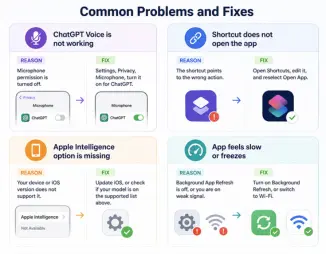
Fix common ChatGPT iPhone issues with simple troubleshooting steps and practical solutions.
ChatGPT Voice is not working
Reason: Microphone permission is turned off. Fix: Settings, Privacy, Microphone, turn it on for ChatGPT.
The shortcut does not open the app
Reason: The shortcut points to the wrong action. Fix: Open Shortcuts, edit it, and reselect Open App.
The Apple Intelligence option is missing
Reason: Your device or iOS version does not support it. Fix: Update iOS, or check if your model is on the supported list above.
The app feels slow or freezes
Reason: Background App Refresh is off, or you are on weak signal. Fix: Turn on Background Refresh, or switch to Wifi.
Before troubleshooting further, make sure you avoid these ChatGPT mistakes that quietly cause most setup issues in the first place.
What I Learned While Testing This
While setting this up on my own iPhone, I assumed I could fully replace Siri in one go. That was wrong. Apple still keeps Siri as the default, but the Action Button plus a shortcut got me close enough that I stopped noticing the difference in daily use.
Things I Learned
- Voice Mode feels faster than typing once you get used to it
- Apple Intelligence behaves differently from just opening the app directly
- Shortcuts genuinely cut down the number of taps needed
- Siri still wins for basic device controls like alarms and calls
In my opinion, Voice Mode is the quickest way to reach ChatGPT on an iPhone because it feels closer to a real conversation than typing ever does. Siri still has the edge for quick device tasks though, so I keep both around.
Common Mistakes to Avoid
Avoid common mistakes and learn simple ways to use ChatGPT features more effectively.
- Forgetting to turn on microphone permission
- Running an outdated iOS version
- Expecting Siri to disappear completely
- Never trying Voice Mode at all
- Downloading a fake or unofficial ChatGPT app from outside the App Store
Small setting, big issue. That microphone permission alone causes most of the Voice Mode complaints people run into.
Conclusion
So that is the full picture on how to use ChatGPT on iPhone instead of Siri. Apple will not let you swap the assistant completely, but between the Action Button, Shortcuts, and Apple Intelligence, ChatGPT ends up feeling like your main assistant anyway.
If you mostly want quick help with writing, research, or thinking through something, this setup is worth the five minutes it takes. If you mainly need alarms, calls, or smart home control, keep leaning on Siri for those.
Try the Action Button method first if your iPhone supports it. It is the closest thing to a true one tap replacement you will get right now.
FAQs
Can I fully replace Siri with ChatGPT on iPhone?
No. Apple keeps Siri as the built in system assistant. You can only make ChatGPT faster to reach through shortcuts, the Action Button, or Apple Intelligence.
Is ChatGPT free to use on iPhone?
Yes, there is a free plan with basic chat and limited Voice Mode. Paid plans unlock faster replies and higher usage limits.
Does the Action Button work with ChatGPT on every iPhone?
No, only iPhone 15 Pro models and newer support the Action Button. Older models need to rely on a Home Screen shortcut instead.
Why is ChatGPT Voice Mode not working on my iPhone?
The most common reason is microphone permission being turned off in Settings. Turn it back on under Settings, then ChatGPT.
Does Apple Intelligence send everything to ChatGPT?
No, it only sends a request when Siri cannot answer it and you approve the handoff. It asks permission the first time this happens.
Can I launch ChatGPT using my iPhone Action Button?
Yes. If your iPhone supports the Action Button, you can assign a ChatGPT shortcut to it. A long press opens ChatGPT instantly, giving you much faster access than searching for the app manually.
Do I need Apple Intelligence to use ChatGPT on iPhone?
No. You can use the ChatGPT app on any compatible iPhone without Apple Intelligence. Apple Intelligence only adds deeper Siri integration on supported devices.
Is an internet connection required to use ChatGPT on iPhone?
Yes. ChatGPT requires an internet connection to process requests and generate responses. Most features, including Voice Mode and Apple Intelligence integration, won’t work offline.
Which is faster for opening ChatGPT: Siri Shortcut or Action Button?
The Action Button is usually the fastest option because it launches ChatGPT with a single long press. If your iPhone doesn’t have one, a Home Screen or Siri Shortcut is the next best alternative.

He is an AI & Technology Content Specialist covering generative AI, ChatGPT, AI tools, automation, and emerging technologies. His work focuses on researching complex AI developments and turning them into practical, easy-to-understand insights.