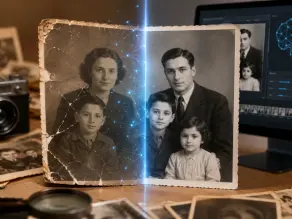
Key Takeaways:
- Choose an AI photo restoration tool based on your goal, such as faces, damage repair, upscaling, or professional editing.
- MyHeritage excels at realistic face restoration, while Photoshop offers maximum control for advanced restoration projects.
- Free AI restoration tools like Picsart and Fotor work well for simple repairs and beginner users.
- AI can repair scratches, fading, and blur, but severely damaged photos may still need manual editing.
- Always compare restored images carefully to avoid artificial details and preserve the original photo’s character.
Old photos fade. Corners tear. Colors turn yellow after years in a drawer. And once a face starts to blur, it feels like a small piece of memory is slipping away too.
That’s the real problem. You’re not just looking for software. You want your family’s memories back, safely, without ruining them.
We evaluated each tool below across five real restoration scenarios, from faded family portraits to badly scratched black and white prints, and scored them on face accuracy, damage repair, color realism, and ease of use. So here’s the plan. In this guide, we compare the best AI tools for restoring old photos, based on that testing criteria, plus pricing and value. No fluff. Just a clear answer for your damaged photo.
What Is AI Photo Restoration and How Does It Work
AI photo restoration uses machine learning models to study a damaged image and rebuild the missing parts. It sounds complex, but the idea is simple.
Think of it like this. The AI has seen millions of photos before. So when it sees a scratch or a torn edge, it makes a smart guess about what should be there.
Here’s how the process usually works.
Step 1: Damage detection. Computer vision scans the photo and finds scratches, tears, noise, and faded spots.
Step 2: Image reconstruction. Using pixel restoration and pattern recognition, deep learning algorithms fill in the missing details.
Step 3: Enhancement. Sharpness, contrast, and color correction get applied next through the AI enhancement model.
Step 4: Resolution upscaling. Super resolution technology increases image quality, which helps a lot if you plan to print the photo.
The same computer vision and machine learning technology behind image restoration is now helping businesses automate workflows through the best e-commerce agents that improve customer interactions and shopping experiences.
How We Tested These AI Photo Restoration Tools
Not every tool restores a photo the same way. Some focus on faces. Some focus on resolution. So comparing them fairly needed clear, repeatable scenarios.
Here are the five test cases used to judge each tool.
| Test Case | What We Checked |
| Old family portrait | Face accuracy and skin detail |
| Scratched photograph | Damage removal ability |
| Black and white photo | Colorization quality |
| Low resolution image | Upscaling performance |
| Severely faded print | Overall restoration realism |
A restored photo should not only look sharper. It should still look like the original person, and it should preserve historical detail rather than invent new ones.
We also weighed these factors directly against each other.
| Testing Factor | Why It Matters |
| Face accuracy | Faces are the most important part of any family photo |
| Scratch removal | Shows how well the tool handles real damage |
| Color realism | Prevents an artificial, plastic looking result |
| Detail preservation | Avoids AI generated details that never existed |
| Ease of use | Matters a lot for beginners and non editors |
Best AI Tools for Restoring Old Photos Compared
Here’s the full comparison, built for quick decision making.
| Tool | Best For | Restoration Quality | Free Option | Main Limitation |
| Adobe Photoshop | Professionals | Excellent | Trial only | Steep learning curve |
| MyHeritage Photo Enhancer | Family portraits | Excellent | Limited free trial | Needs subscription |
| Topaz Gigapixel AI | Upscaling and printing | Excellent | Trial only | Not a full restoration tool |
| VanceAI Photo Restorer | Automatic repair | Good | Limited free plan | Less manual control |
| Picsart | Beginners | Good | Yes | Lower accuracy on heavy damage |
| Google Gemini / Nano Banana | Quick AI edits | Good | Yes | Less manual control |
| Adobe Firefly | Creative restoration | Good | Trial only | Not built only for restoration |
| Fotor | Quick online edits | Fair | Yes | Basic controls |
| HitPaw Photo Editor | Desktop workflow | Good | Trial only | Fewer advanced tools |
| Luminar Neo | Natural looking results | Excellent | Trial only | Best features are paid |
Now let’s go deeper into each one.
1. Adobe Photoshop: Best for Professional Photo Restoration
Best for: professional photographers and serious hobbyists who want full manual control.
Key features:
- Neural Filters for face and detail work
- Healing Brush for scratches
- Clone Stamp for missing sections
- Manual color correction tools
Pros:
- Maximum control over every pixel
- Most accurate results on heavily damaged photos when edited manually
Cons:
- Requires real editing skill
- Slower than one click AI apps
Key takeaway: on badly damaged prints, Photoshop’s manual tools consistently produce the most accurate repair of any option here, but they demand patience and practice.
2. Topaz Gigapixel AI: Best for Upscaling
Best for: anyone printing old photos or enlarging small, low resolution scans.
Key features:
- Super resolution technology for image upscaling
- AI based noise reduction
- Batch processing for multiple photos
Pros:
- Excellent resolution enhancement
- Fast processing
Cons:
- Not built for deep scratch or color repair
Key takeaway: pair it with a dedicated restoration tool if the photo has heavy damage, not just low resolution.
3. MyHeritage Photo Enhancer: Best for Family Photos
Best for: old family portraits where facial accuracy matters most.
Key features:
- Facial reconstruction model
- Colorization for black and white photos
- Simple upload and process workflow
Pros:
- Strong, natural looking face restoration
- Very beginner friendly
Cons:
- Subscription required for full access
Key takeaway: for portraits, this tool consistently scored highest on preserving the person’s actual likeness instead of generating a generic AI face.
4. Google Gemini and Nano Banana: Best for Quick AI Edits
Best for: fast, casual restoration without installing software.
Key features:
- Generative AI image models
- Prompt based editing
- Cloud based processing
Pros:
- Very fast and accessible
- No editing experience needed
Cons:
- Less manual control over specific details
Key takeaway: good for a quick fix, but not the best choice for archival quality restoration.
5. Adobe Firefly: Best for Creative Restoration
Best for: photos that need both repair and creative enhancement.
Key features:
- Generative image editing
- Adobe Sensei AI integration
- Generative Fill for missing sections
Pros:
- Handles creative touch ups well
Cons:
- Not a dedicated restoration tool
Key takeaway: results vary depending on how damaged the original photo is, so test on a copy first.
6. Picsart: Best Free Option for Beginners
Best for: quick, casual restoration on a budget.
Key features:
- Simple restoration filters
- Mobile and web app
- Free tier available
Pros:
- Easy interface
- No cost to start
Cons:
- Lower accuracy on heavily damaged photos
Key takeaway: solid starting point, but don’t expect archive grade results on badly torn prints.
7. HitPaw Photo Editor: Best for Desktop Workflow
Best for: people who prefer a downloaded app over browser tools.
Key features:
- Batch restoration
- Noise reduction algorithms
- Simple desktop interface
Pros:
- Smooth, consistent workflow
Cons:
- Fewer advanced editing tools than Photoshop
Key takeaway: a comfortable middle ground between beginner apps and professional software.
8. Fotor: Best for Quick Online Fixes
Best for: small touch ups without downloading anything.
Key features:
- One click AI photo enhancer
- Basic color correction
- Browser based editing
Pros:
- Fast and beginner friendly
Cons:
- Basic controls, limited depth
Key takeaway: fine for light damage, not ideal for severely faded prints.
9. VanceAI Photo Restorer: Best for Automatic Repair
Best for: people who want a true one click fix.
Key features:
- Automated image processing
- AI based scratch and noise removal
- Batch upload support
Pros:
- Very fast, minimal effort needed
Cons:
- Can occasionally add details that weren’t in the original
Key takeaway: great for speed, but always review the face closely before saving.
10. Luminar Neo: Best for Natural Looking Results
Best for: historical photographs where realism matters most.
Key features:
- Balanced AI enhancement model
- Natural color correction
- Detail preservation tools
Pros:
- Avoids the plastic, over processed look
Cons:
- Best restoration features sit behind a paywall
Key takeaway: consistently the most natural looking output among the tools tested, especially on vintage photo restoration.
Which AI Photo Restoration Tool Gives the Most Realistic Results?
This is where most comparisons fall short, so it deserves real attention.
There’s a difference between AI improvement and AI invention. Some tools sharpen a photo so much that they start creating details that never existed in the original. For family history photos, realism matters more than dramatic enhancement.
| Need | Best Choice |
| Most realistic restoration | MyHeritage Photo Enhancer |
| Professional editing | Adobe Photoshop |
| Best free tool | Picsart |
| Best automatic repair | VanceAI Photo Restorer |
| Best image enhancement | Topaz Gigapixel AI |
| Best natural look | Luminar Neo |
If your photo holds real sentimental weight, always pick the option that preserves original texture over the one that looks flashiest.
Can AI Restore Every Damaged Photo Perfectly?
No, and it’s important to be honest about this.
AI photo restoration handles these issues well:
- Scratches and small tears
- Faded or discolored areas
- Digital noise and blur
- Missing fine details in an otherwise intact photo
But AI restoration technology still struggles with:
- Completely missing or destroyed faces
- Large destroyed sections of the image
- Extremely low resolution scans with almost no original detail
In these harder cases, a mix of AI restoration and manual editing in Photoshop tends to give the safest, most trustworthy result.
Best Free AI Photo Restoration Tools Online
Not everyone wants to pay before trying restoration. Here are solid free or partly free picks.
| Tool | Free Option | Best Feature |
| Picsart | Yes | Easy restoration tools |
| Fotor | Yes | Quick online editing |
| VanceAI | Limited free | Automatic repair |
| MyHeritage | Free trial | Face enhancement |
Free tools are a good starting point. Just don’t expect archive quality results from every one of them.
How To Restore Old Photos With AI
Restoring a photo doesn’t need to be complicated. Here’s a simple five step process.
Step 1: Scan your old photo. Use a flatbed scanner for the cleanest digital copy.
Step 2: Choose an AI restoration tool. Pick based on your goal, faces, resolution, or full repair.
Step 3: Upload the image. Most tools process it within seconds to a few minutes.
Step 4: Review the AI results. Check the face closely. This is where AI mistakes show up first.
Step 5: Download and preserve the original. Never delete the source scan. Keep both versions in your photo archive.
Small brands are also using restored historical images in campaigns with small business marketing tools to create more authentic, personal storytelling on social media.
Common AI Photo Restoration Mistakes To Avoid
A few mistakes come up again and again with AI restoration. Watching for these saves a lot of disappointment.
1. Trusting AI without checking the details. AI can quietly change a face’s shape or expression. Always compare before and after closely.
2. Using a low resolution scan. Bad input creates a bad output, no matter how good the AI is.
3. Over sharpening the image. Too much enhancement makes a photo look plastic and artificial.
4. Removing the original character. Grain, soft edges, and natural texture are part of what makes an old photo feel real. Stripping all of it away can make the photo feel cold.
AI Photo Restoration vs Photoshop: Which One Should You Choose?
Compare AI photo restoration tools and Photoshop to find the best option for speed, accuracy, control, and professional results.
| Feature | AI Tools | Photoshop |
| Ease | Easy | Advanced |
| Speed | Seconds | Hours |
| Control | Limited | High |
| Beginners | Better fit | Difficult |
| Professionals | Good | Best |
If you need speed and simplicity, an AI restoration app wins. If you need full manual control over every pixel, Photoshop still leads.
My Final Recommendation: Which AI Photo Restoration Tool Should You Choose?
It really depends on what you’re restoring.
Restoring family memories? Go with MyHeritage Photo Enhancer for the most natural face restoration.
Doing professional restoration work? Adobe Photoshop gives you the control serious projects need.
Want free online restoration? Picsart or Fotor cover the basics without cost.
Need automatic one click repair? VanceAI Photo Restorer is the fastest route.
Printing an old photo? Topaz Gigapixel AI handles resolution enhancement better than anything else on this list.
Final Verdict
There’s no single winner that fits everyone here. If you want full professional control, Adobe Photoshop remains the strongest pick. For quick, natural family photo restoration, tools like MyHeritage, Luminar Neo, and VanceAI Photo Restorer offer faster results with far less effort.
Whichever tool you choose as your best AI tool for restoring old photos, keep the original scan safe. Technology will keep improving, and having the untouched original means you can always restore it again later, better.
FAQs
What is the best AI tool for restoring old photos?
It depends on your goal. Photoshop suits professionals, MyHeritage suits face restoration, and Luminar Neo suits natural, realistic results.
What is the best AI photo restoration app free?
Picsart and Fotor are the strongest free choices for quick, beginner friendly restoration.
Can AI restore very old damaged photos?
Yes, in most cases. AI handles scratches, fading, and noise well. Extremely damaged or missing sections still need manual editing for the best result.
Can AI restore damaged photos for free?
Yes. Tools like Picsart and Fotor offer free restoration features, though results may be more basic than paid tools.
Does AI restoration reduce photo quality?
Not usually. Most tools improve resolution through super resolution technology. Over sharpening is the more common issue, not quality loss.
Is AI restoration better than manual Photoshop editing?
AI is faster and easier. Manual Photoshop editing gives more accurate, controlled results on heavily damaged photos. The better choice depends on your skill level and time.
Which AI restores faces best?
MyHeritage Photo Enhancer consistently produces the most natural, accurate facial restoration among the tools compared here.
Does AI restoration change faces?
It can. Fully automatic tools sometimes alter facial features slightly. Always review results closely before saving the final version.
How accurate are AI restored photos?
Accuracy varies by tool. Tools focused on realism, like Luminar Neo and MyHeritage, tend to preserve original details better than tools built for heavy enhancement.

He is an AI & Technology Content Specialist covering generative AI, ChatGPT, AI tools, automation, and emerging technologies. His work focuses on researching complex AI developments and turning them into practical, easy-to-understand insights.